Clash Verge Node & Subscription Setup: Import, Test and Fix
Clash Verge Rev is a client, not a proxy service. A fresh installation contains no usable servers until you import either:
- a subscription URL supplied by a service you trust; or
- a local Mihomo-compatible YAML profile that you maintain yourself.
Keep subscription URLs private. They often contain an account token that can be used by anyone who obtains the full link.
Import a subscription URL #
- Open Profiles in Clash Verge Rev.
- Paste the complete subscription URL into the import field.
- Choose the URL/import action and wait for the profile to download.
- Select the new profile and refresh it once.
- Open Proxies, test the main selector group and choose an available node.
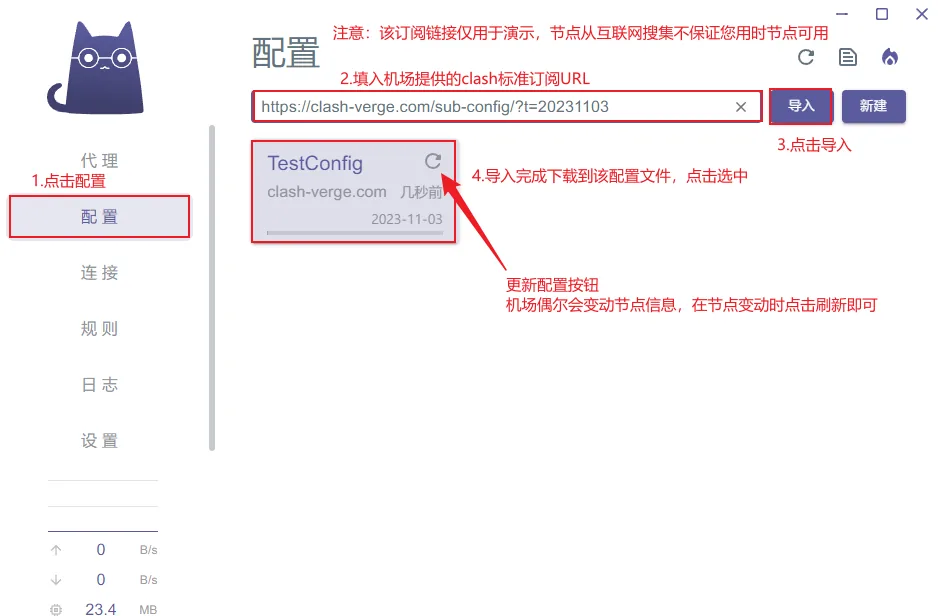
If the profile returns 403, expires, or fails YAML parsing, use the subscription troubleshooting guide.
Import a local Mihomo YAML file #
Use a local profile when you operate your own servers or already have a configuration generated for Mihomo.
A complete profile normally includes:
proxiesorproxy-providers;- at least one
proxy-groupsselector; - a valid
rulessection; - optional DNS and TUN settings.
You can drag the YAML file into the Profiles page or use the local-file import action.
Do not put application-level options such as system_proxy_bypass into the subscription profile. Those values belong to Clash Verge’s verge.yaml or System Proxy settings. See the system_proxy_bypass format guide.
Test and select a node #
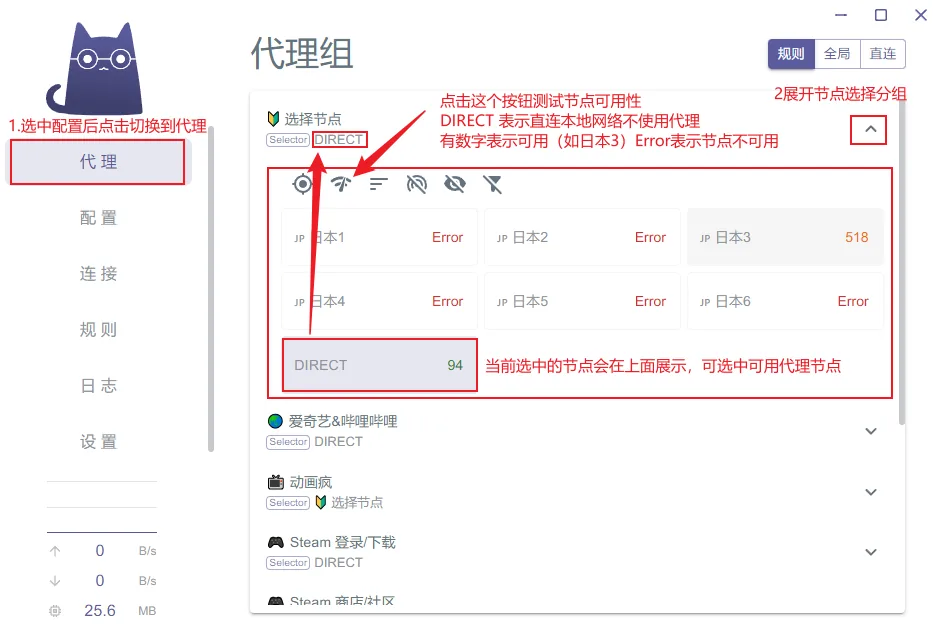
A latency test checks whether the configured test URL responds through a node. It does not prove that the operating system is currently routing traffic through Clash Verge.
After selecting a node:
- use Rule mode as the normal starting point;
- enable System Proxy for browsers and apps that honor OS proxy settings;
- use TUN mode only when you need broader routing or an app ignores System Proxy;
- open Connections or Logs and confirm which rule and outbound group handled the request.
If latency works but browsing does not, check TUN, DNS and no-internet troubleshooting.
Subscription vs manually added nodes #
| Method | Best for | Main risk |
|---|---|---|
| Subscription URL | Managed profiles and multiple nodes | Token exposure, expired URL, provider-side format changes |
| Local YAML | Self-managed infrastructure and reproducible config | Syntax mistakes and manual maintenance |
| Editing downloaded YAML directly | Temporary diagnosis only | Subscription refresh overwrites the changes |
For persistent custom domains or process routing, use Edit Rule instead of modifying the downloaded profile directly.
Common import failures #
403 Forbidden #
The subscription server rejected the request. Copy a fresh URL, verify that the token was not truncated, and contact the provider if the same URL also fails outside Clash Verge.
YAML parse error #
Request Mihomo or clash.meta output. A profile generated for another application may contain unsupported fields or invalid indentation.
Profile imports but no nodes appear #
The response may be an HTML login/error page rather than YAML, or every node may have been removed by the provider. Inspect the error message and refresh from the provider dashboard.
Nodes work until the next update #
Changes made directly in a downloaded profile are overwritten by refresh. Store rules in Edit Rule and stable global options in the appropriate Extended Configuration or application settings.
Security checklist #
- Never post a complete subscription URL in a public issue or screenshot.
- Download Clash Verge Rev from the authoritative GitHub source.
- Treat “free node lists” as untrusted; the server operator can observe or manipulate unencrypted traffic.
- Back up subscription URLs before resetting the application configuration.
- Verify the active rule and outbound group instead of relying only on a latency number.