Clash Verge TUN Mode Not Working? Service, DNS & IPC Fixes
“How to set up TUN mode” is one of the most common Clash Verge questions. In one line: TUN mode routes your entire computer’s traffic through the proxy, including apps that ignore the system proxy.
Five checks before changing advanced settings #
- Install Service Mode or run Clash Verge Rev with administrator privileges.
- Test one routing method at a time: turn off System Proxy while diagnosing TUN.
- Keep built-in DNS enabled; start with fake-ip or the profile’s working default.
- Close other VPN/TUN applications to avoid virtual-adapter and route conflicts.
- If startup waits about 30 seconds or shows
IPC path not ready, end leftover Mihomo processes and reinstall Service Mode.
This follows Clash Verge Rev v2.x. The detailed platform steps and failure modes are below.
TUN mode vs system proxy: know the difference first #
| System Proxy | TUN mode | |
|---|---|---|
| How it works | Sets the OS HTTP/SOCKS proxy | Creates a virtual NIC, captures all traffic |
| Coverage | Only apps that honor proxy settings (browsers, etc.) | Almost everything, including games and CLI tools |
| Privileges | Normal | Administrator (Service Mode / admin mode) |
| Best for | Everyday browsing | Game acceleration, whole-device proxy, apps that ignore the system proxy |
Quick test: the browser proxies fine but some app/game refuses to go through the proxy → time for TUN.
Prerequisite: Service Mode / Admin mode #
TUN needs elevated privileges. Clash Verge Rev offers two ways (pick one):
- Service Mode (recommended): installs a background system service for the needed privileges — install once and TUN works on every normal launch.
- Administrator mode: run Clash Verge as administrator each time.
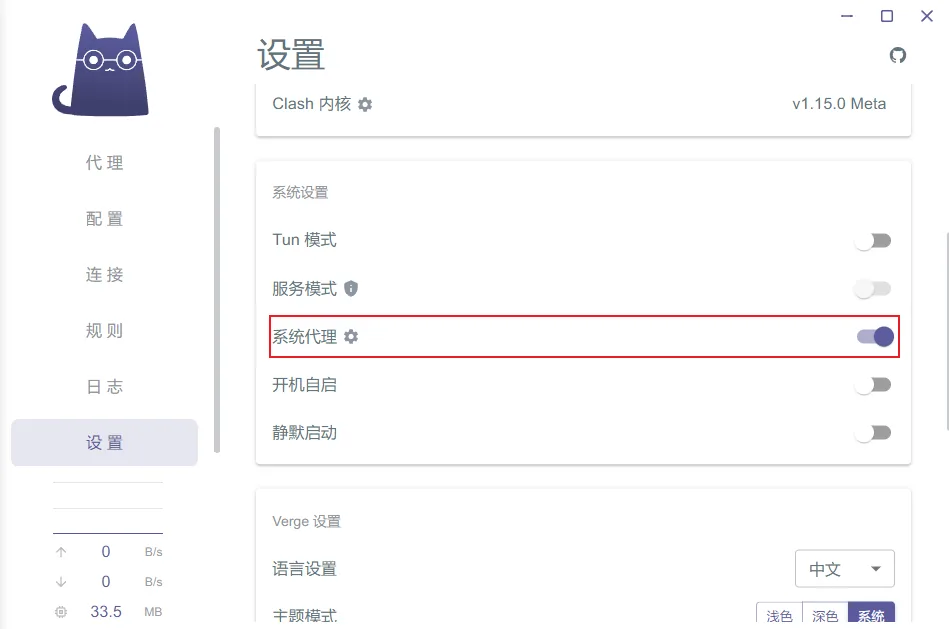
Enabling steps #
Windows #
- Settings → Service Mode → Install (confirm the UAC prompt); or right-click → run as administrator.
- Turn on Settings → TUN Mode.
- On Windows, TUN uses the Wintun driver — handled automatically, no manual driver install.
macOS #
- Settings → Service Mode / authorize the core: follow the prompt and enter your password to grant the core root privileges.
- Turn on the TUN Mode toggle.
Linux #
- Install the service or grant the core privileges (depends on distro — may need
setcapor installing the service). - Turn on the TUN Mode toggle.
Stack choice (gVisor / System / Mixed) #
The TUN network stack is selectable in settings:
| Stack | Notes |
|---|---|
| gVisor | Best compatibility, the default, stable across platforms |
| System | Uses the system stack, higher performance, but more environment-sensitive |
| Mixed | A combination of both |
When unsure, keep the default gVisor; try System only if you want maximum performance and hit no issues.
Windows: administrator privileges, service timeout and adapter conflicts #
If Windows displays “administrator privileges required to modify system proxy”, close Clash Verge and either install Service Mode or reopen it with Run as administrator. Service Mode is preferred because it avoids a privilege prompt on every launch.
If enabling TUN pauses for about 30 seconds or reports a service/core error:
- Exit Clash Verge from the tray and end leftover
clash-verge,verge-mihomoandmihomoprocesses. - Open Settings, uninstall Service Mode if it is shown as broken, then install it again.
- Disable another VPN or proxy application’s TUN adapter before retrying.
- Keep only one routing method enabled while testing: turn off System Proxy, enable TUN, and verify DNS is enabled.
- If the error says
IPC path not ready, fix the core/service startup first; switching nodes will not repair the missing IPC connection.
TUN and System Proxy conflict #
System Proxy and TUN are two different routing paths. They can coexist in some configurations, but enabling both while diagnosing a problem makes the result harder to interpret.
Use this isolation test:
- Turn off System Proxy.
- Close any other VPN or proxy client that creates a virtual adapter.
- Enable TUN only.
- Confirm built-in DNS is enabled.
- Test one website and inspect the Connections or Logs page.
If TUN works alone, re-enable other features one at a time. If it fails alone, focus on privileges, Service Mode, DNS and adapter conflicts rather than changing nodes repeatedly.
Service Mode timeout and IPC errors #
If enabling TUN pauses for about 30 seconds or reports IPC path not ready, the interface has not established communication with the Mihomo core or service.
- Exit Clash Verge from the tray.
- End leftover
clash-verge,verge-mihomoandmihomoprocesses. - Reopen the application with sufficient privileges.
- Uninstall and reinstall Service Mode if its status is abnormal.
- Temporarily disable software that blocks service installation or virtual adapters.
Switching nodes cannot repair a core process that did not start.
TUN is enabled but there is no internet #
Check in this order:
- Confirm the selected node actually works.
- Keep only TUN enabled during diagnosis; turn off System Proxy.
- Enable built-in DNS and start with fake-ip or the profile default.
- Close another VPN/TUN client and retry.
- Check the Connections or Logs page for a DIRECT rule, DNS failure or rejected outbound.
- If all network access stopped after a crash, disable the operating-system proxy and restart Clash Verge Rev.
Common TUN problems #
| Symptom | Cause / fix |
|---|---|
| TUN on but no internet | Service Mode not installed / not running as admin; or DNS off → enable DNS (fake-ip recommended) |
| TUN toggle won’t stay on | Insufficient privileges → install Service Mode or run as admin |
| TUN on but still not proxying | Another VPN/proxy also runs TUN, adapter conflict → close the other TUN client |
| DNS leak | Enable the built-in DNS with fake-ip so system DNS isn’t bypassed |
| Game/app still direct | Make sure the app isn’t bound to a specific NIC; if needed, use a custom rule to force it through the proxy |
Related #
- Add custom rules (force an app/site through proxy or direct): How to add rules in Clash Verge
- Change DNS and other global keys: Clash Verge Global Extended Configuration
- Enabling TUN on Linux (core authorization): Clash Verge on Linux: install & configure
- More troubleshooting: Clash Verge FAQ
- Getting started: Clash Verge tutorial