Clash Verge Themes: Dark Mode, Colors & Custom CSS
Clash Verge Rev’s interface is customizable: from a simple dark mode and theme color, all the way to custom CSS for fonts, colors and hiding elements. Here it is in order of effort.
This follows Clash Verge Rev v2.x; custom CSS requires v1.5.8 or later.
1. Light / Dark mode #
The most basic switch: Settings → Theme Mode, pick one of:
- Light / Dark / System
System follows your OS appearance automatically — no restart.
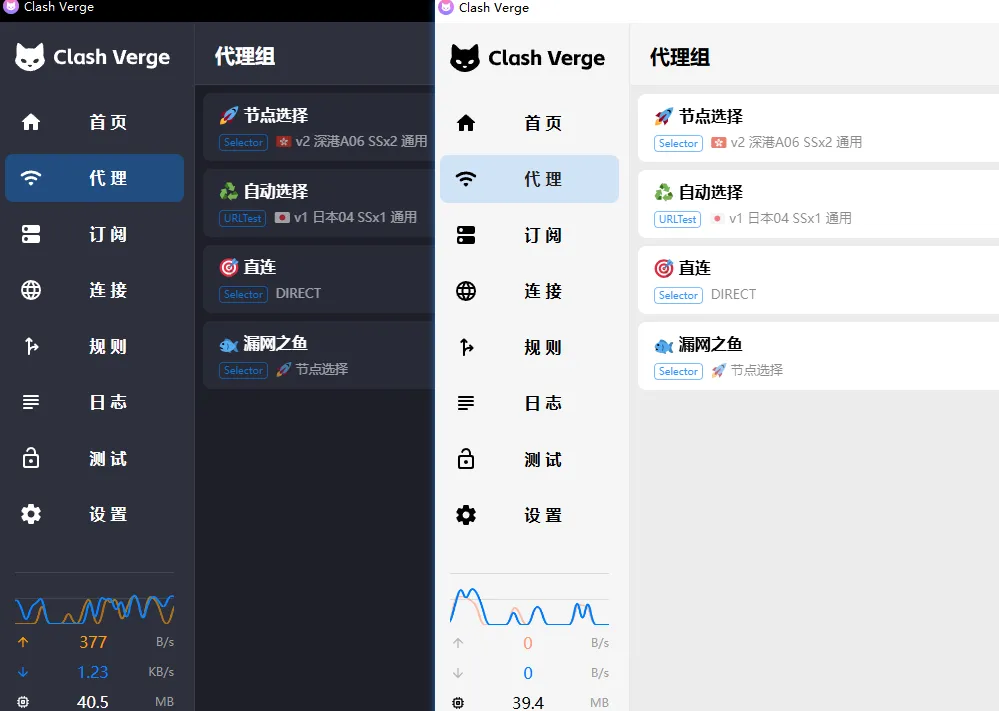
2. Theme color (primary color) #
Change the primary color (buttons, selection, accents) in the theme settings under Settings. It applies instantly — handy for a brand color or personal palette.
3. Tray and proxy-group icons #
Clash Verge Rev also supports custom:
- Tray icon — different icons for different modes (TUN / system proxy) in the system tray.
- Proxy-group icon — give a proxy group an icon via the
iconfield (an icon URL) in your subscription; the UI displays it.
4. Custom CSS (CSS Injection) — deep customization #
To change fonts, spacing, background, or hide elements, use CSS Injection.
Where: open Settings, find CSS Injection, and paste your CSS — it applies instantly.
Requires Clash Verge Rev v1.5.8 or later (the developer tools need this version too).
Official example (font, header background and font size):
span {
  font-family: 'Arial' !important;
}
header p {
  background-color: red !important;
  font-size: 58px !important;
}
If cascading styles don’t take effect, add
!importantto force the override.
More copy-paste snippets:
/* global font */
* {
  font-family: 'Inter', 'Segoe UI', sans-serif !important;
}

/* softer rounded corners */
.MuiPaper-root {
  border-radius: 14px !important;
}

/* hide an element you don't want (confirm the class via DevTools first) */
/* .some-element { display: none !important; } */
How to find the right selector #
Element class names aren’t always obvious. Use the developer tools (DevTools): inspect the element you want to change, note its tag/class, then target it in CSS Injection. The UI is built on Material UI, so many classes start with Mui.
5. Where to find ready-made themes / CSS #
The community shares Clash Verge CSS snippets and palettes (GitHub, forums, theme repos). Paste someone’s CSS into CSS Injection to apply it; clear it anytime to return to default.
About the app icon (
clash verge icon): the desktop icon ships with the app and isn’t usually replaced; what you can customize is the tray icon and proxy-group icons above.
Related #
- Override DNS/ports and more: Clash Verge Global Extended Configuration
- Add custom rules: How to add rules / custom rules
- System-wide proxy: Clash Verge TUN mode setup
- Getting started: Clash Verge tutorial